
If your data model needs a calendar table but you do not have one readily available in your source system, Power BI provides two excellent ways to generate one: using Power Query or DAX.
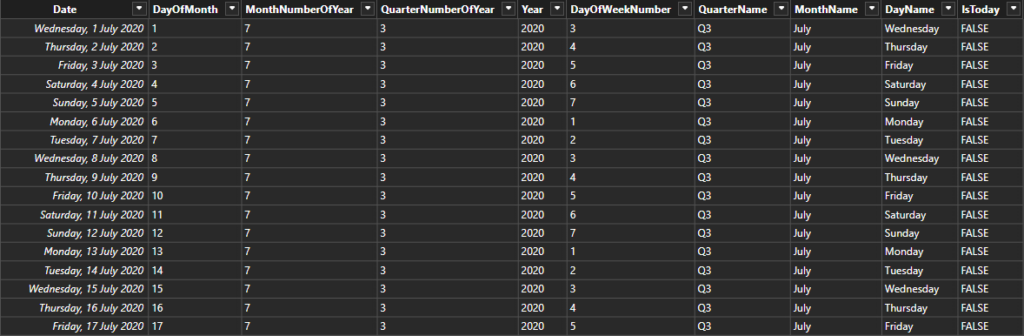
In this guide, you will learn how to create a feature-rich calendar table from scratch, complete with useful date attributes like day names, month names, quarter labels, and a flag for today’s date. Whether you prefer the flexibility of DAX or the control of Power Query, this tutorial has you covered.
Creating a Calendar Table with Power Query
To begin, open Power Query and create a blank query. Right click in the Queries pane and choose New Query > Blank Query, then open the Advanced Editor. Replace the default code with the following function:
let
    CreateDateTable = (StartDate, EndDate) =>
let
    StartDate=#date(2020,01,01),
    EndDate=DateTime.Date(DateTime.LocalNow())+ #duration(1,0,0,0),
    //Create lists of month and day names for use later on
    MonthList = {"January", "February", "March", "April", "May", "June"
                 , "July", "August", "September", "October", "November", "December"},
    DayList = {"Monday", "Tuesday", "Wednesday", "Thursday", "Friday", "Saturday", "Sunday"},
    QuarterList = {"Q1", "Q2", "Q3", "Q4"},
    //Find the number of days between the end date and the start date
    NumberOfDates = Duration.Days(EndDate-StartDate)+1,
    //Generate a continuous list of dates from the start date to the end date
    DateList = List.Dates(StartDate, NumberOfDates, #duration(1, 0, 0, 0)),
    //Turn this list into a table
    TableFromList = Table.FromList(DateList, Splitter.SplitByNothing(), {"Date"}
                     , null, ExtraValues.Error),
    //Caste the single column in the table to type date
    ChangedType = Table.TransformColumnTypes(TableFromList,{{"Date", type date}}),
    //Add custom columns for day of month, month number, year
    DayOfMonth = Table.AddColumn(ChangedType, "DayOfMonth", each Date.Day([Date])),
    MonthNumber = Table.AddColumn(DayOfMonth, "MonthNumberOfYear", each Date.Month([Date])),
    QuarterNumber = Table.AddColumn(MonthNumber, "QuarterNumberOfYear", each Date.QuarterOfYear([Date])),
    Year = Table.AddColumn(QuarterNumber, "Year", each Date.Year([Date])),
    DayOfWeekNumber = Table.AddColumn(Year, "DayOfWeekNumber", each Date.DayOfWeek([Date])+1),
    //Since Power Query doesn't have functions to return day or month names,
    //use the lists created earlier for this
    QuarterName = Table.AddColumn(DayOfWeekNumber, "QuarterName", each QuarterList{[QuarterNumberOfYear]-1}),
    MonthName = Table.AddColumn(QuarterName, "MonthName", each MonthList{[MonthNumberOfYear]-1}),
    DayName = Table.AddColumn(MonthName, "DayName", each DayList{[DayOfWeekNumber]-1}),
    //Add a column that returns true if the date on rows is the current date
    IsToday = Table.AddColumn(DayName, "IsToday", each Date.IsInCurrentDay([Date]))
in
    IsToday
in
    CreateDateTable
Once added, you can invoke the function using a default date range (such as 1 January 2020 through tomorrow) or specify a custom range like 2020-01-01 to 2027-12-31.
Tip: If you want Sunday to be the first day of the week, simply change the
DayListordering in the function.
After invoking the function, rename the output table to Calendar, and the function to something readable like fn_CreateCalendar. Close and apply to load the calendar into your model.
Creating a Calendar Table with DAX
Prefer to work in DAX? In the Table View, click New Table and enter the following:
DaxCalendar =
VAR StartDate = DATE(2020, 1, 1)
VAR EndDate = TODAY() + 1
RETURN
ADDCOLUMNS (
    CALENDAR (StartDate, EndDate),
    "DayOfMonth", DAY([Date]),
    "MonthNumberOfYear", MONTH([Date]),
    "QuarterNumberOfYear", QUARTER([Date]),
    "Year", YEAR([Date]),
    "DayOfWeekNumber", WEEKDAY([Date], 2),  -- 1 = Sunday as start of week
    "QuarterName", "Q" & QUARTER([Date]),
    "MonthName", FORMAT([Date], "MMMM"),
    "DayName", FORMAT([Date], "dddd"),
    "IsToday", [Date] = TODAY()
)
To start the week on Sunday instead of Monday, change WEEKDAY([Date], 2) to WEEKDAY([Date], 1).
Pros and Cons of Each Approach
Either option has its pros and cons. These include:
Power Query Calendar Table
✅ Pros
- Created during data load: Keeps your model lean; calendar is static and doesn’t recalculate at query time.
- Rich transformation options: Easier to shape and manipulate with advanced M logic during ETL.
- Less volatile: Once loaded, doesn’t change unless data is refreshed which is good for reproducibility.
- Can use dynamic end dates: Easily control
EndDatewithDateTime.LocalNow()logic. - Easier to reuse logic across models: You can paste the M function into any model or use it in a dataflow.
❌ Cons
- Harder to debug for some users: M code is less familiar to most Power BI developers than DAX.
- Can’t easily respond to user filters: Since it’s static post-load, you can’t dynamically adjust based on user selections (e.g., slicer-driven ranges).
- No relationships until loaded: Can’t reference other tables during table creation (no RELATED or CALCULATE context).
DAX Calendar Table
✅ Pros
- Quick to write and modify: DAX is more accessible for most Power BI users.
- Fully dynamic: Recalculates with the model and can respond to things like TODAY(), user filters, or slicer-driven min/max dates.
- Easier to debug for DAX-savvy users: Especially if your whole model is DAX-driven, it’s more cohesive.
- Supports calculated columns and measures easily: You can easily add columns that rely on related tables or dynamic expressions.
❌ Cons
- Calculated table increases model size: Especially if your calendar table includes a large date range or high granularity.
- More volatile: It can recalculate unnecessarily (e.g., each time you open the report or refresh visuals).
- Can impact performance: Since it’s part of the data model, poorly optimized DAX calendar tables can slightly bloat model memory or slow refreshes.
Best Practice Recommendation
- Use Power Query when:
- You want a clean, lean model.
- You’re working with fixed or semi-fixed time ranges.
- You want to handle complex date logic during ETL.
- Use DAX when:
- You need the calendar to be fully dynamic or based on other tables/measures.
- You’re prototyping quickly or already working entirely in DAX.
- You want date ranges to adjust based on slicers or today’s date with full reactivity.
Final Thoughts
Whether you use Power Query or DAX, both methods let you generate a comprehensive and reusable calendar table that supports advanced reporting in Power BI. Choose the approach that best suits your data workflow and report interactivity needs.
If you would like help customising your model, calendar table, or transforming your reporting experience, don’t hesitate to contact our consultancy for expert support.